Guide / Fuze MCP
Connect Claude or ChatGPT to Fuze.
Start in the AI app you want to use. Paste the Fuze MCP URL there and sign in with Fuze. You don’t need to open Fuze settings.
Add the Fuze URL to your AI app.
Use the address for the Fuze workspace you normally sign in to:
- Production
https://prod.fuze.chaoslab.co.nz/api/mcp- Beta
https://beta.fuze.chaoslab.co.nz/api/mcp
- Claude: Open Connectors and add a custom connector. Name it Fuze and paste the URL into the server URL field. Claude’s connector instructions.
- ChatGPT on the web: In Plugins, choose Add custom MCP server. Name it Fuze, paste the URL and choose OAuth for sign-in. If your workspace uses the older Apps screen, choose Apps → Create. ChatGPT’s connection instructions.
If Fuze is already listed by your team, select it instead of adding it again. If you can’t add a connection, ask the person who manages your Claude or ChatGPT workspace.
Sign in with your Fuze account.
When your AI app sends you to Fuze, sign in, check the workspace and review the access requested. Approve the connection to return to your AI app. Your Fuze permissions still apply.
Check it in a new chat.
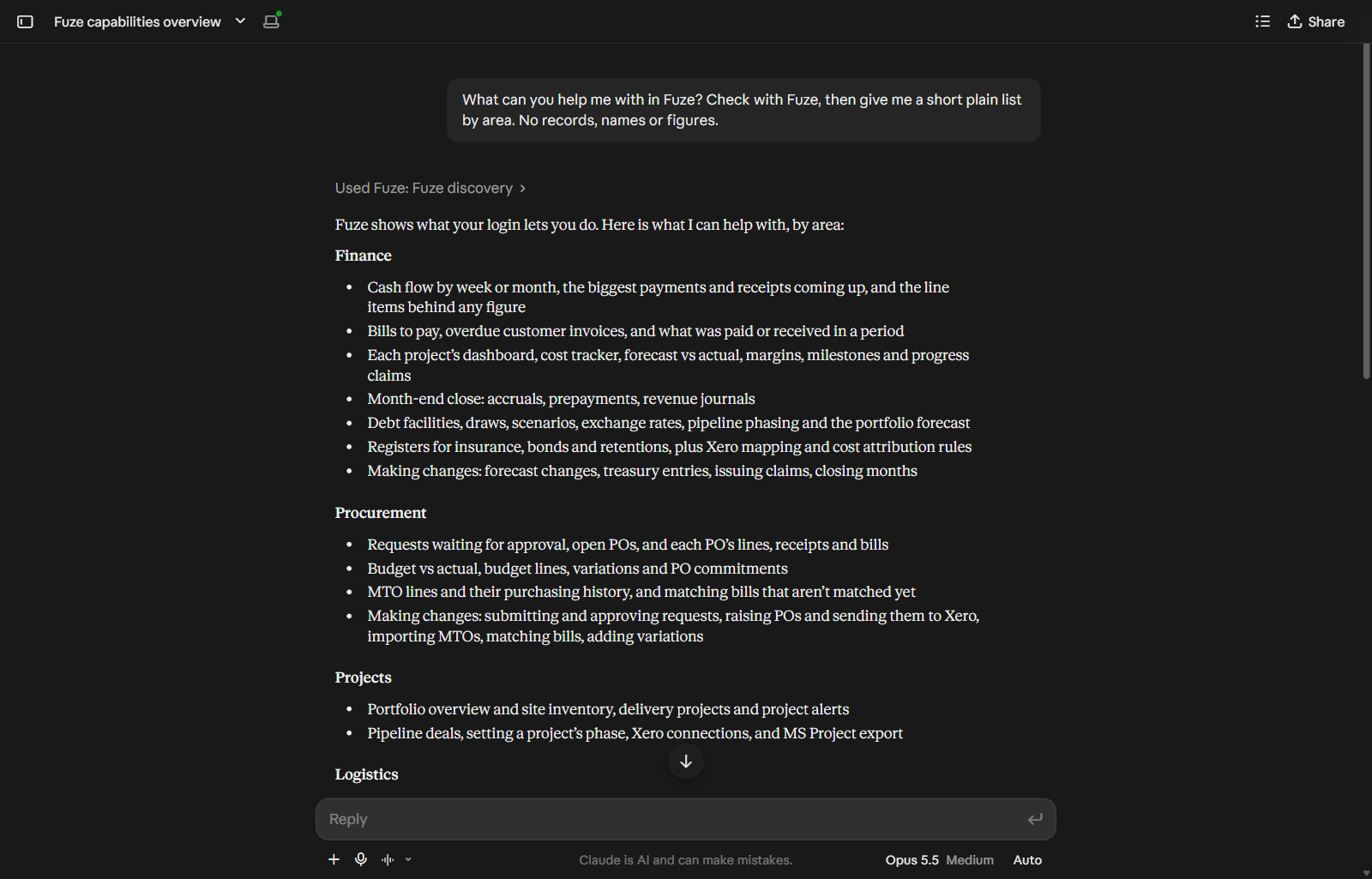
Select Fuze in the chat and ask: “Check with Fuze: what can I look up in this workspace?” Look for the Fuze tool call alongside the answer. That tells you the app asked Fuze, rather than answering from memory.
Optional: workspace controls
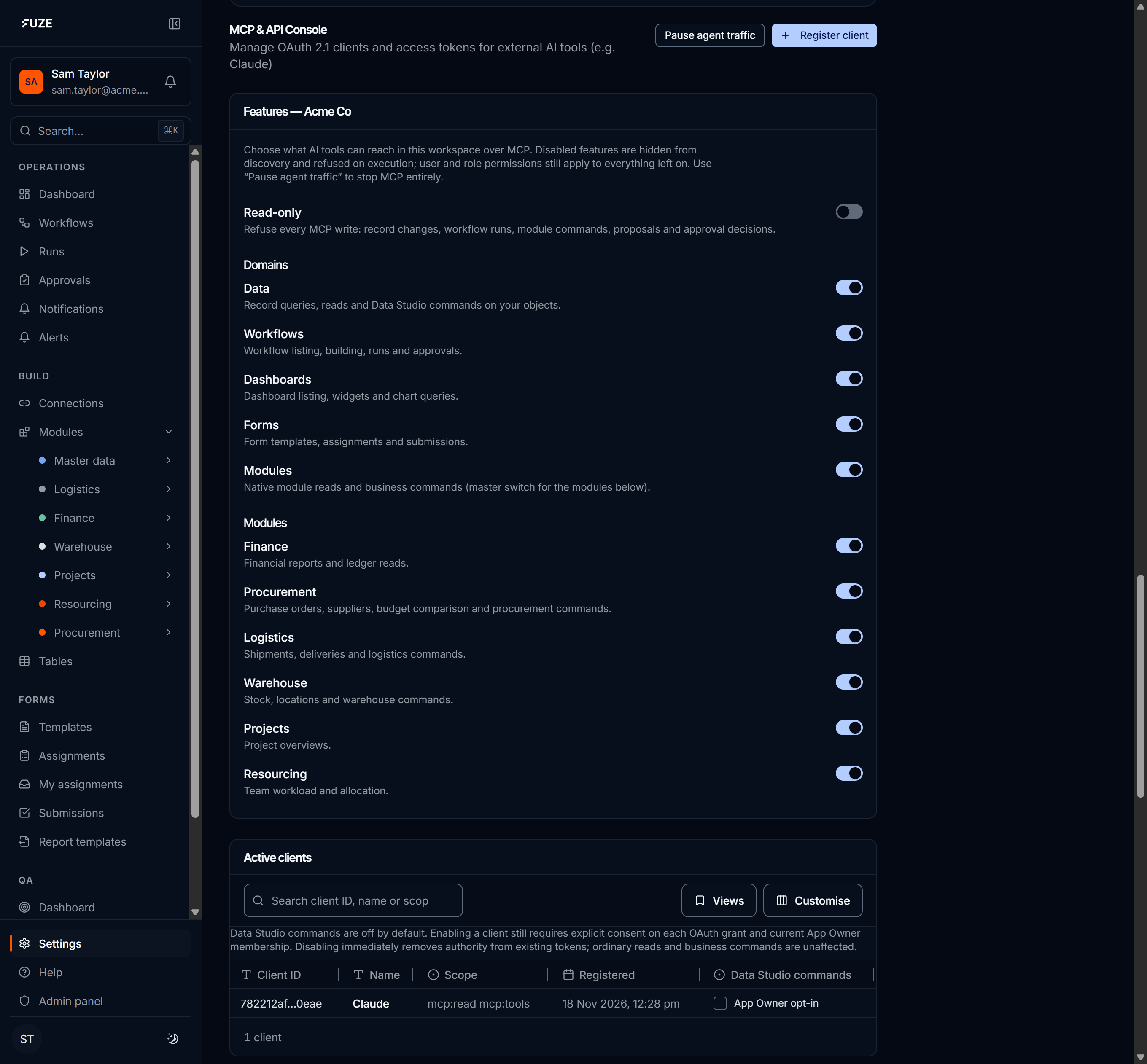
Where can a Fuze owner limit access?
In Fuze’s Settings → MCP & API Console, the workspace owner can make connections read-only, limit which areas they can reach or pause agent traffic. These are controls for the workspace, not steps for connecting an AI app.